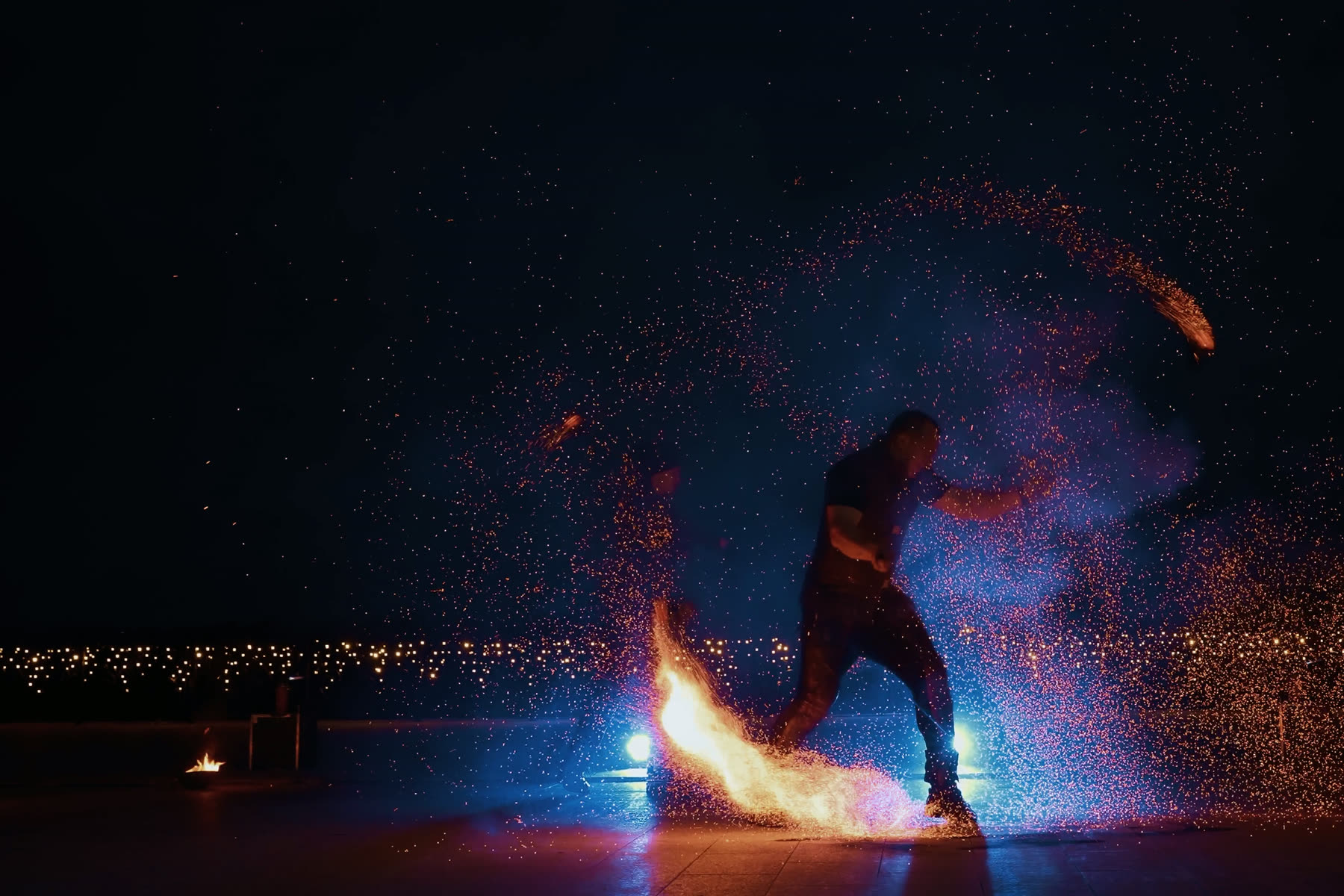
Sensor grain
High-ISO footage carries luma and chroma noise that survives a clean key. It is random per frame, so a spatial filter alone leaves it crawling.
Denoising for Premiere Pro · closed beta
Noise Eraze cleans sensor and compression noise without turning skin, fabric or foliage into plastic. Six algorithms, motion-aware temporal filtering, and a panel that stays out of the way.
Windows · Premiere Pro · CUDA optional
Sensor grain, compression artefacts and temporal flicker look alike in a still frame and behave differently in motion. One slider cannot fix all three.
High-ISO footage carries luma and chroma noise that survives a clean key. It is random per frame, so a spatial filter alone leaves it crawling.
Long-GOP codecs smear detail into blocks and rings. They sit next to real texture, which is why aggressive cleanup eats fabric and foliage first.
A different denoise result on every frame reads as shimmer in motion, even when each still frame looks clean.
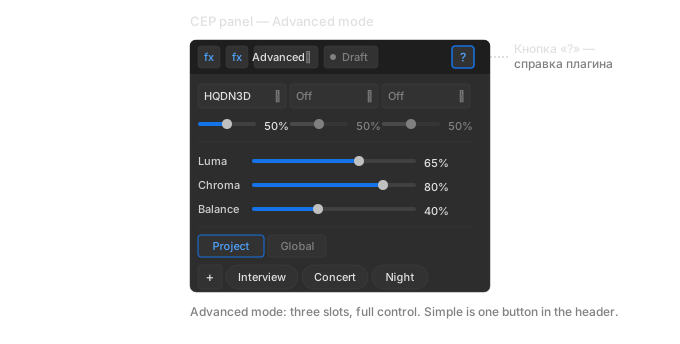
One algorithm, one Denoise slider, presets. Advanced is one click away in the panel header, and switching does not change the picture.
Analyze Motion stores vectors in the project. ATAdenoise, temporal HQDN3D and BM4D reuse them instead of recomputing on every frame.
Draft Preview and Preview Mode simplify the heavy path while you scrub. Export always renders at full quality.
Every algorithm is a different trade between speed, texture and motion. Start with the table, then open the full guide.
| Algorithm | Type | Speed | Quality | Motion | When to use |
|---|---|---|---|---|---|
| HQDN3D | Spatial + light temporal | Tolerates | You need a result fast | ||
| ATAdenoise | Temporal | Needs compensation | Static scene, interviews | ||
| NLMeans | Spatial | Tolerates | Textures and detail matter | ||
| FFTdnoiz | Spatial, block-based | Tolerates | A balance of speed and quality | ||
| BM3D | Block-based | Tolerates | You need quality and have time | ||
| BM4D | Block-based + temporal | Needs compensation | Reference quality; Analyze Motion required |
The CEP panel holds presets, Simple and Advanced views, Draft, and the Analyze Motion button. The effect keeps working without it: the panel is a faster way to drive it, not a dependency.
Optical-flow vectors align neighbouring frames before temporal filtering, so movement does not turn into ghosting.
A per-instance ring keeps the frames the temporal algorithms need, with a hard memory budget and a clean reset on format changes.
CUDA stages run on the GPU, the rest on the CPU. If CUDA is unavailable the pipeline falls back instead of failing.
The draft path is deterministic: the same simplification step gives the same frame, so you can judge settings on playback.
Copy the .aex into MediaCore\Mxvd, drop the CEP extension into the CEP folder, and enable PlayerDebugMode. Five minutes.
Installation guide ↗Drop Noise Eraze on a clip. Stay in Simple for the first pass, or open Advanced and stack up to three algorithms.
First run ↗Run Analyze Motion once, preview with Draft on, then turn Draft off for the final render.
Workflow guide ↗Yes. Every stage has a CPU implementation. CUDA speeds up the heavy algorithms, and the pipeline falls back to CPU when CUDA is unavailable.
It computes optical-flow vectors and stores them in the project. Temporal algorithms reuse the cache, so they do not recompute motion on every frame.
It can, if you push it. Start with a texture-friendly algorithm such as NLMeans or BM3D and keep Denoise moderate; the plugin is designed to preserve detail, not to plasticise skin.
HQDN3D for a fast first pass, ATAdenoise for static or interview footage, NLMeans for textures, and BM3D or BM4D when quality matters more than time.
Early access is open to editors, colorists and post houses. Tell us what you shoot and what you edit on.