Workflow · install to export

From timeline to clean frame.

Noise Eraze is one effect and one panel, not a new application. Here is the shortest path from a noisy clip to a final render.

01

Install the effect and the panel

Put NoiseEraze.aex in MediaCore\Mxvd and the CEP extension in the Adobe CEP folder. Enable PlayerDebugMode once so Premiere loads the unsigned panel. The effect works without the panel; the panel is where presets and Analyze Motion live.

Installation steps ↗
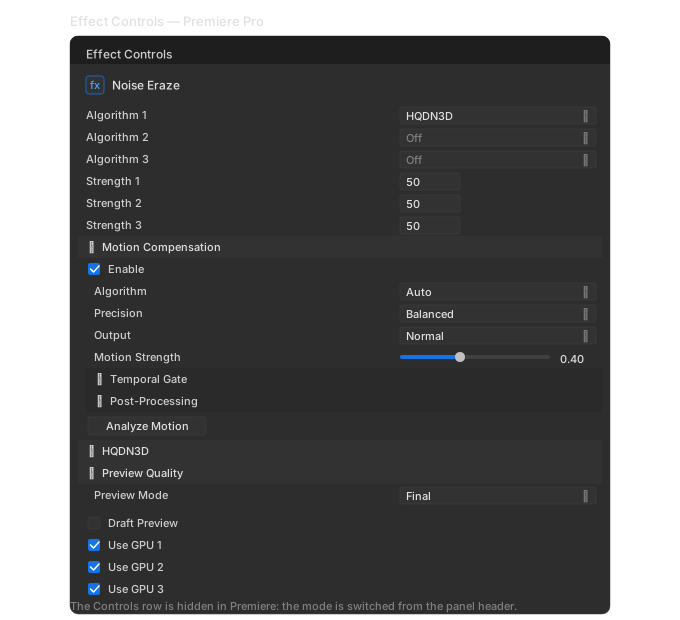
Effect Controls: Controls, algorithm slots, Denoise and the luma/chroma split.
02

Apply the effect and pick a mode

Drop Noise Eraze on a clip from the Mxvd category. The first Effect Controls row is the Controls popup: Simple, Advanced or Debug. Simple leaves one algorithm, one Denoise slider and presets; Advanced exposes the full stack.

First run ↗
03

Choose an algorithm, then stack if needed

HQDN3D is the fast default. ATAdenoise for static interviews, NLMeans for texture, FFTdnoiz for balance, BM3D or BM4D for the final. A second slot is often cheaper than pushing one algorithm too far.

Algorithm guide ↗
04

Analyse motion once

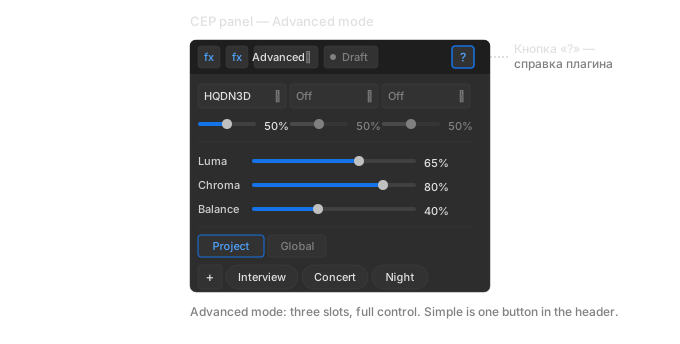
For ATAdenoise, temporal HQDN3D or BM4D, press Analyze Motion in the panel. Vectors are stored in the project and reused by every temporal algorithm. Re-run only when the clip or the motion settings change.

Motion compensation ↗
The CEP panel in Advanced mode: slots, presets, Draft and Analyze Motion.
05

Preview in draft, export at full quality

Turn Draft on while you scrub, or set Preview Mode to Realtime on heavy 4K timelines. Turn Draft off before the final render: it is a real render parameter, not a viewer toggle.

Preview and quality ↗

The details live in the docs.

Every parameter, every failure mode, and the five-question algorithm tree.